This is for anyone deploying several label printers in a warehouse or on a production line. After reading it you will know what to prepare, how the process runs, and what to do when one printer does not come onto Wi‑Fi.
The steps come from DEN Team’s own tests, using a Brady (Honeywell) CT32, RP4F and PC45t. We have not tested other models.
Prepare two things first
1. A settings profile
Set one printer up the way you want (darkness, media, command language and so on), then use DEN Printer Setup to export its settings as a profile.
A profile holds only the settings the printers share. It does not carry fields that differ per printer, such as the name or IP address.
2. Wi‑Fi settings
Have the network name and password ready. The password is entered once at the start of each batch and shared by the whole batch. It is not stored in the profile, the provisioning records or the exported CSV, and it is cleared when the batch ends.
You can use just one of the two: apply only the profile, or only join Wi‑Fi.
Run the batch
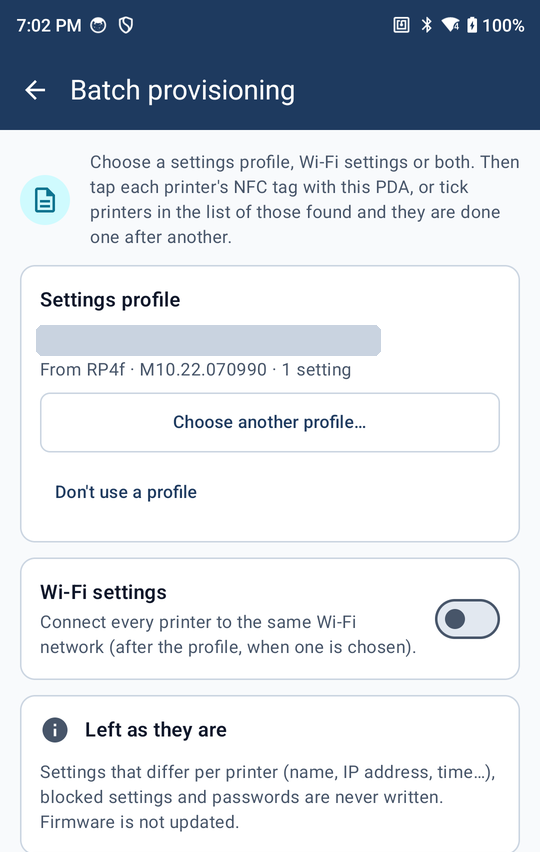
From the home screen go to Batch provisioning, choose the profile, turn on Wi‑Fi settings and enter the password, then start the batch. There are two ways to continue:
- Tap: hold the back of the PDA against a printer’s NFC tag. That printer connects and the settings are applied. Then move to the next one.
- Choose from the list: tick several printers in the list of printers found, and the tool works through them one by one.
Once the batch is running, the printer just finished is shown at the top, with counts of done, succeeded and failed below.
In testing we confirmed a few things:
- Tapping the same printer again does not count it twice.
- One printer failing does not affect the ones after it.
- When a printer is a different model from the one the profile came from, the tool pauses and warns you, and you decide whether to go on.
Check each printer’s Wi‑Fi result
When a printer finishes, its Wi‑Fi result is one of these:
| Result | Meaning | What to do |
|---|---|---|
| Online | The printer has appeared on the network, and its IP address is shown | Nothing |
| Written, not online | The printer was not seen online within 60 seconds. A wrong password is the most common cause | See the next section |
| Written, not confirmed | The PDA is not on that network, so it cannot check | Connect the PDA to the same network and confirm the printer appears on the home screen |
| Not written | The printer did not accept the Wi‑Fi settings | It is recorded as failed. Handle it again |
What to do about “Written, not online”
The password cannot be changed while a batch is running, and that printer is not retried automatically. To fix it:
- End the batch.
- Start a new batch with the correct password.
- Tap that printer with NFC, or tick it in the list and connect over Bluetooth.
NFC or Bluetooth is needed because that printer’s Wi‑Fi has already been changed to the new network without joining it, so the PDA cannot reach it over Wi‑Fi.
Keeping records
Every printer gets a provisioning record: model, firmware, time, whether it was provisioned by tap or from the list, which settings succeeded or failed, and the Wi‑Fi result. Records can be exported as CSV for handover or audits.
If the profile changes the command language, the tool sends a restart at the end and notes it in the record. If the restart could not be sent, the record says why, and that printer has to be restarted by hand before the new command language takes effect.
Notes
- Changing settings carries risk. Export a backup of the existing settings first.
- Whether these actions affect the manufacturer’s warranty or support is governed by the manufacturer’s own terms.
- What is described here is what we observed in testing. Results may differ with other models or firmware versions.